
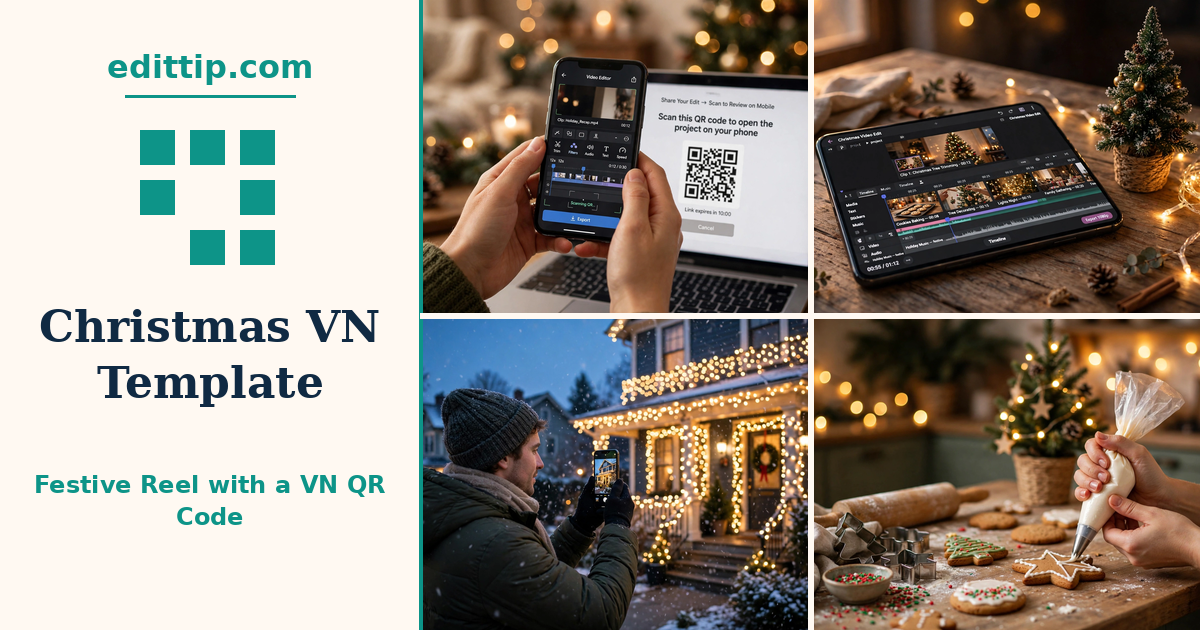
CapCut is not the only app with one-tap Christmas templates. VN Video Editor has its own version, and it works differently: instead of searching a library inside the app, you scan a QR code — called a VN Code — and the whole edit loads onto your phone. Cuts, transitions, music timing and colour grading arrive ready-made. You add your own festive video clips to the Christmas VN template, and the reel is done.
This guide explains what a Christmas VN template is, how to find a VN Code for one, how to scan and use it, and how to make your own code from an edit you built yourself. It is written for festive video clips — tree decorating, lights, baking, snow — rather than still photos. A photo-led VN template works differently and deserves its own guide.
What a Christmas VN Template Is
A Christmas VN template is a finished edit shared as a project file. The creator has already built the timeline: where each clip starts and ends, which transitions sit between them, how the music lines up with the cuts, and what colour grade sits over the whole thing. When you load the Christmas VN template, VN locks those choices in as placeholders. You replace the placeholders with your own clips, and the edit keeps the creator’s timing and style.
The Christmas VN template travels as a VN Code, which is a QR code image. Creators share the code in a YouTube video description, an Instagram post, a Telegram channel, or a template website. You save the image or point your phone at it, scan it inside the VN app, and the template opens.
VN Video Editor itself is free, with no watermark on exports, and it works on Android and iPhone. It is made by Ubiquiti Labs, and the official website is https://vlognow.me/ — that is the safest place to check you have the real app. Install it only from the official Google Play Store or Apple App Store, never from a modified APK file.
How to Find a Christmas VN Template QR Code
There is no single official library of VN Codes the way CapCut has a Templates tab. Christmas VN templates live where their creators share them, so finding one takes a little searching.
Start with the places creators actually post: YouTube video descriptions for “Christmas VN template” or “Christmas VN QR code”, Instagram reels that show the finished edit and include the code in the post, and template websites that publish VN Codes with a short guide. Search those phrases and look for a recent post — a code from this Christmas season is more likely to still work than one from two years ago.
Before you scan a Christmas VN template code, check the source. A code from a creator with a visible finished video, a clear preview of what the reel looks like, and comments from people who used it is a reasonable bet. A code on a page full of pop-ups, download buttons and no preview is not worth your time. Never pay for a VN Code — creators share them free, and a paid code is a sign something is off.
Keep your expectations honest. A creator can remove a Christmas VN template, and a code can stop working. If a Christmas VN template code fails, it is usually the code, not your phone — try another one rather than assuming you did something wrong.
Two Christmas Templates to Try in the VN App
If you want a starting point, VN’s official website lists “Polaroid with Santa” and “Warm Dinner Hug” among its 150+ free templates. The website lists these template names, but it does not show a QR code for them. To find the Christmas VN template code, open the VN app, go to Templates, and search for the exact template name.
How to Use a VN QR Code, Step by Step
The whole process takes a few minutes once you have a code saved and your clips ready.
- Install or update VN first. Get VN Video Editor from the Google Play Store or the Apple App Store, and check it is on the latest version. Older versions sometimes refuse newer Christmas VN template codes and show an “invalid link” or “template format not supported” error. Updating first avoids that problem.
- Save the QR code image. If the code is on another screen — a computer monitor or a friend’s phone — you can scan it directly. If it is on your own phone, save the image to your gallery first: screenshot it or long-press and save.
- Open VN and tap the scan icon. In the VN app, tap the scanner icon at the top of the main screen. If the code is on another screen, point your camera at it. If the code is saved in your gallery, tap the gallery or album icon inside the scanner and choose the saved image. VN reads the code and loads the template preview.
- Download the Christmas VN template. Once the preview loads, tap Download or Use Template. VN fetches the template’s music, transitions and other assets. Keep the app open and your connection steady while it downloads.
- Add your clips. VN will ask you to pick your photos or video clips from your gallery, in the order you want them to appear. The Christmas VN template tells you how many clips it needs and how long each one should be. Choose clips that match the timing — a two-second slot cannot hold a ten-second clip without being cut.
- Preview, adjust, export. Watch the preview with the sound on. If a clip sits awkwardly, swap it or trim it. When you are happy, export the video and save it to your phone. From there you can post it as a TikTok, an Instagram Reel, or a YouTube Short.
Making Your Own Christmas VN Code
You do not have to find someone else’s Christmas VN template. If you have already built a festive edit you like, you can turn it into a VN Code and share it — or keep it for yourself, so your next Christmas reel starts from the same style.
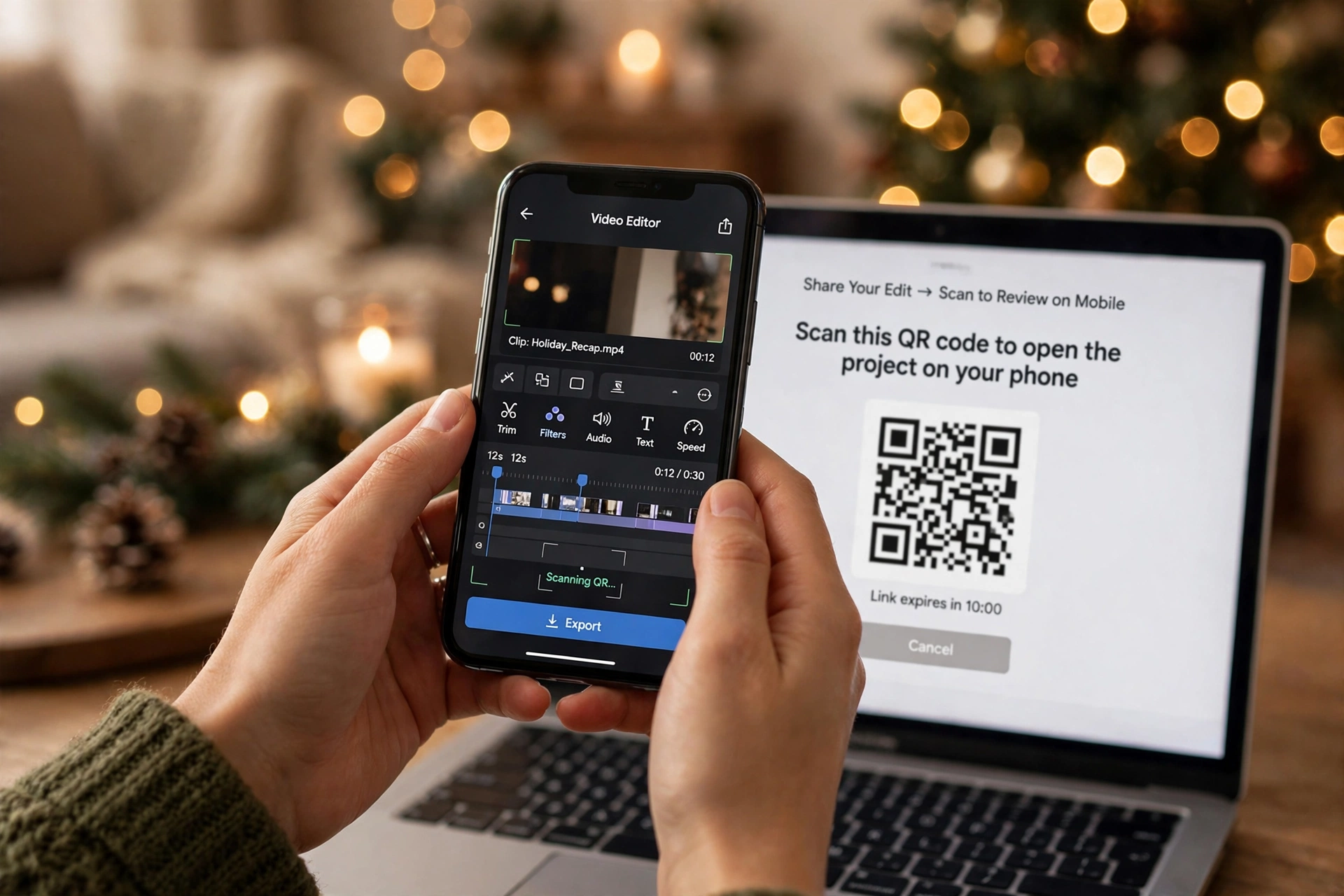
Build the edit first, exactly as you would for a normal reel: your clips on the timeline, transitions between them, music lined up with the cuts, text and colour grade finished. Then go to Share in VN and choose Export as Template, or VN Code. VN turns your whole timeline into a scannable QR image code. Save that image.
Next Christmas, or next week, open VN, scan your own Christmas VN template code the same way described above, and your new footage drops into the old structure — the same cuts, the same music timing, the same grade — with fresh clips. It is the fastest way to keep a consistent look across several reels without rebuilding the edit each time.
If you share your code publicly, keep it simple: post the finished reel so people can see what the template does, then share the code image alongside it. A code without a preview is a code nobody will trust enough to scan.
What Clips Work Best
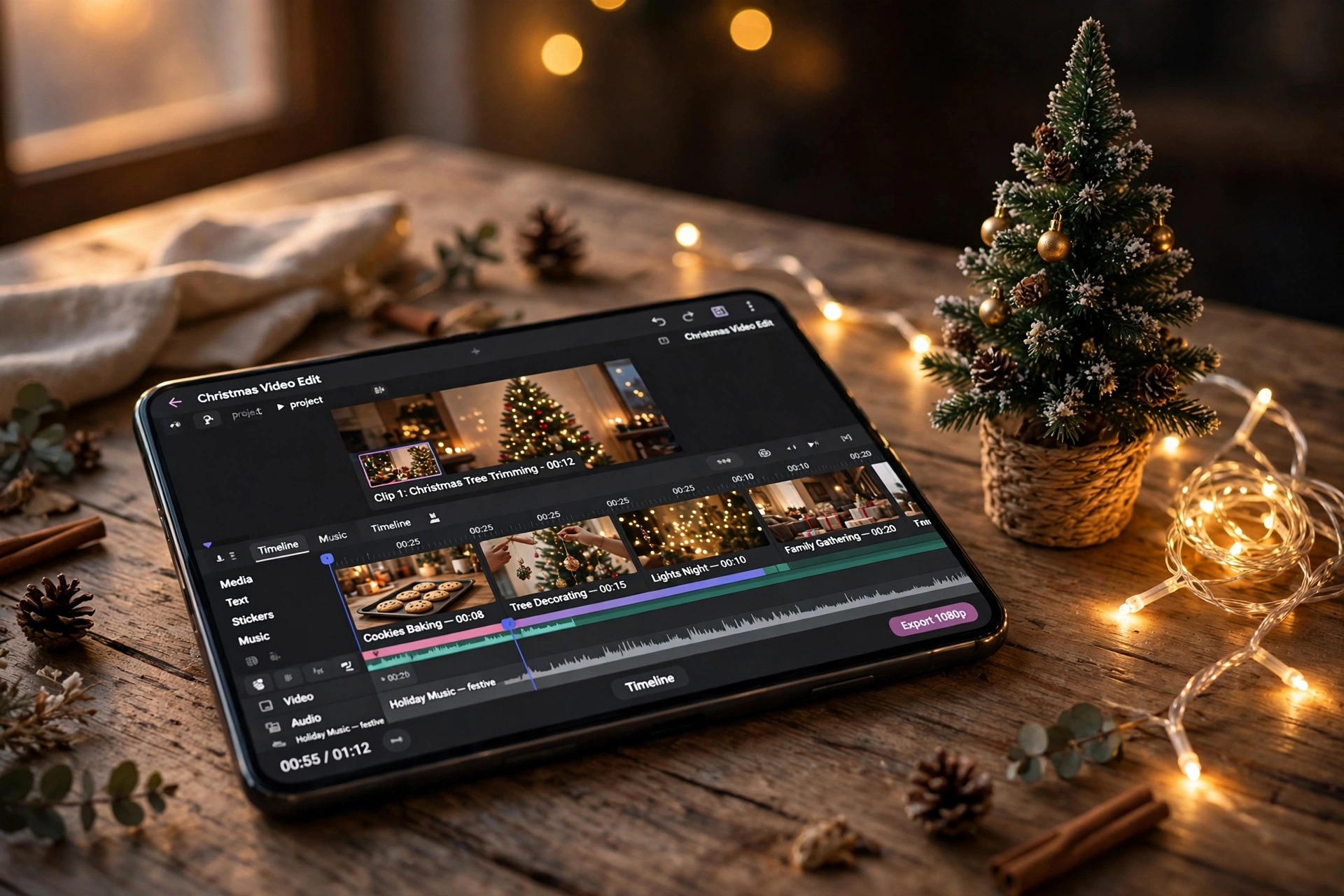
This Christmas VN template is built for video, not still photos. It expects movement: the tree being decorated, lights being switched on, hands wrapping a present, snow falling outside, someone laughing while hanging a bauble. The template’s cuts are timed to movement, so a still photo held for three seconds will feel flat where a moving clip feels alive.
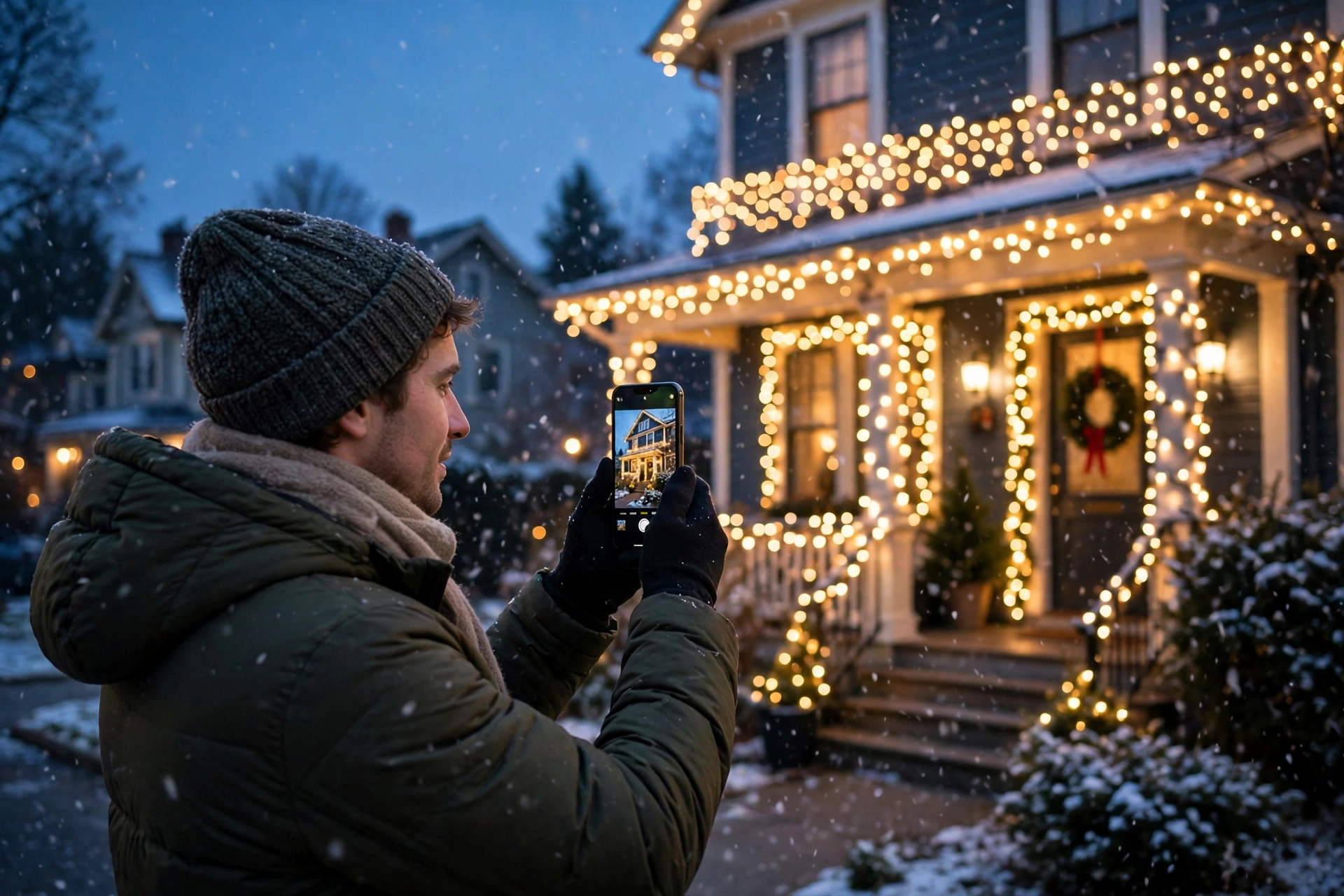
Film in the evening, with the Christmas lights on. A clip of the tree with the room lights off and only the fairy lights glowing is the strongest shot for a festive reel — it is what most Christmas templates were graded for. Close-ups work well too: a bauble, a candle, steam from a mug, wrapping paper being cut.
Keep your clips steady and a little longer than you think you need. The Christmas VN template will cut them to its own timing, and it is easier to trim a long clip than to stretch a short one. Two to five seconds of steady footage per shot is a good target.
Mix close-ups with one wider shot. A good order is: a wide shot of the tree or the room first, then close-ups of the lights and details, then a shot of people — decorating, baking, opening a gift — near the end. That sequence feels like a short story instead of a pile of clips.
Customising After the Scan
A scanned template is a starting point, not a finished reel. Three small changes make it yours.
Change the music only if you need to. The template’s track is timed to its cuts, so swapping it means re-timing the edit. If the original track is unavailable in your region, pick another gentle Christmas track and check the cuts still land on the beat. A loud or fast track will fight the template’s pacing.
Adjust the text. The Christmas VN template may come with a title or a caption. Keep it to one short line — your family name, the year, or a simple “Christmas at home” — in a plain font. Long captions over a soft edit look cluttered, and text in a language you do not recognise should be replaced, not left in.
Fix the framing. VN will fit your clips into the template’s slots, and a clip filmed in the wrong orientation can end up cropped. Check each clip in the preview: faces should be in frame, and nothing important should be cut off at the edges. Reposition a clip rather than accepting a bad crop.
Troubleshooting
The code will not scan.
Make sure the code image is clear, uncropped and high resolution — a blurry screenshot or a cropped corner will not read. Scan from a saved image in your gallery rather than a photo of a screen when you can. If it still fails, update VN to the latest version and try again. If it still fails after that, the creator may have removed the template.
The template loads but the music is missing.
The template’s track may not be licensed in your region, in which case VN substitutes a similar track or leaves the slot empty. Pick a gentle Christmas track from VN’s own music library and check the cuts still land on the beat.
My clips do not fit the slots.
The Christmas VN template expects clips of a certain length. If your clip is too short, film a longer version. If it is too long, VN will trim it — choose which part of the clip to keep rather than letting it cut the middle.
The export looks blurry.
Export at the highest quality VN offers, and make sure your original clips were filmed at a decent resolution. A Christmas VN template cannot sharpen a low-quality clip.
The reel feels too fast or too slow.
That is the template’s pacing, and it is part of its style. If you want a different pace, try another template rather than fighting this one. If you would rather work in CapCut, the Merry Christmas Couple CapCut template is a named Christmas template on Edittip with a calmer, couple-focused edit.
Frequently Asked Questions
Is a Christmas VN template free?
Yes. VN Video Editor is free with no watermark on exports, and creators share their VN Codes free. Some features in VN are part of VN Pro, so if the app asks you to upgrade for a particular feature, that is a Pro feature, not the template itself.
Do I need a QR code, or can I find templates inside VN?
VN has its own built-in templates in the app, under its template and AutoCut sections. The QR code route is for templates shared by creators outside the app. Both work — the code route simply gives you access to far more Christmas styles than the built-in library.
How many clips do I need?
It depends on the Christmas VN template you scan. Most Christmas VN templates use between four and eight clips. Film eight to ten short clips so you have spares to choose from, and let the template tell you how many slots it has when it opens.
Can I use photos instead of video clips?
Yes, the Christmas VN template accepts photos as well as video clips, but this guide is written for video-led templates. A clip of lights being switched on will always look better in a video template than a still photo held for three seconds. If your reel is mostly photos, look for a photo-led VN template instead.
Why does the code say “invalid link” or “template format not supported”?
Your VN app is probably out of date, or the creator has removed the template. Update VN first, then try scanning again from a clear, saved image. If it still fails, find another code.
Can I post the reel on Instagram and TikTok?
Yes. Export the video from VN first, then upload the saved file to TikTok or Instagram as a Reel. The clip is vertical, which fits both.
Final Thoughts
A Christmas VN template is the fastest route to a polished festive reel if you do not want to edit from scratch: one scan, your clips, and the timing, transitions and grade are done. The trick is picking a code you trust, filming clips that actually move, and checking the preview before you export. Scan a code from a creator whose finished reel you have seen, film in the evening with the lights on, and post it while people are still putting their trees up. The best version of this reel is not the most edited one. It is the one that looks like your Christmas.