
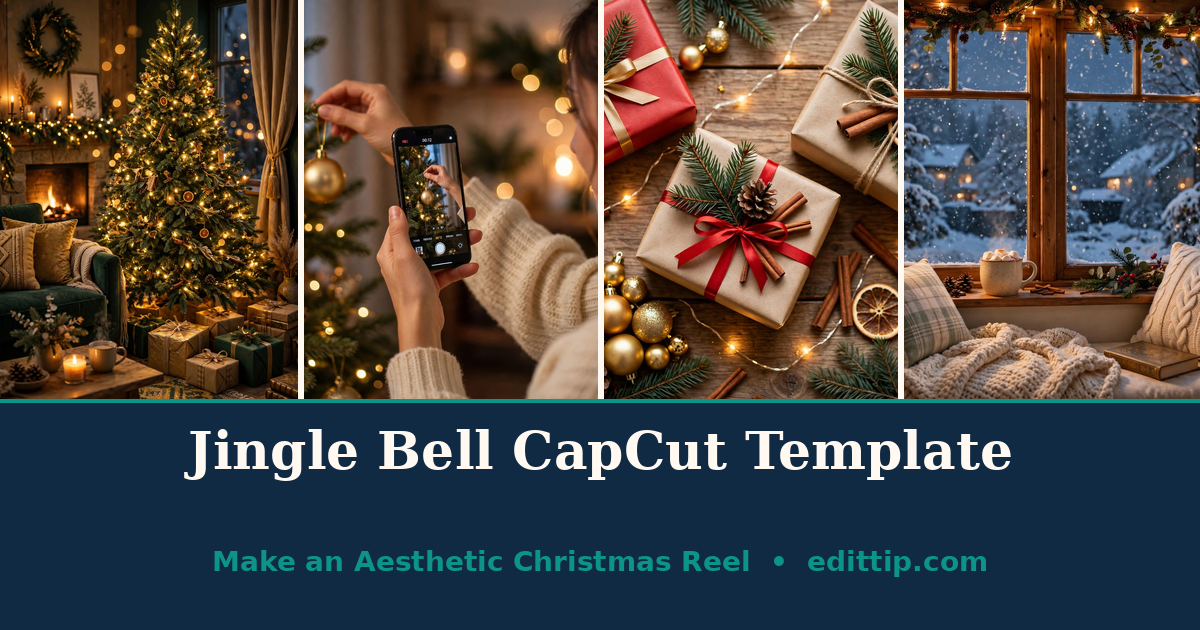
Some Christmas reels look busy. Cuts every half second, text flying in from all sides, three songs fighting each other. The Jingle Bell CapCut template is the opposite of that. It is a slow, warm edit: soft light, gentle zooms, fairy lights glowing in the background, and a jingle-bell tune carrying the whole thing. You add your clips, and the template does the rest.
In CapCut’s template library, the festive edits built around that sound go by names like “Jingle Bell” and “Jingle Bell Aesthetic Reel”. This guide explains what the Jingle Bell CapCut template does, how to find it, and how to make a reel that actually looks like yours rather than a copy of everyone else’s.
What the Jingle Bell CapCut Template Is
A CapCut template is a ready-made edit. Somebody has already chosen the clip order, the transitions, the timing and the music, and you drop your own photos or video clips into the slots. The Jingle Bell CapCut template is built for short Christmas reels — the kind people post on TikTok, Instagram Reels and YouTube Shorts in the run-up to Christmas.
The Jingle Bell CapCut template is built around a simple idea: Christmas at home, filmed softly. The clips it expects are the ordinary moments of the season — the tree going up, lights being switched on, presents being wrapped, hot chocolate on the table, snow outside the window. The Jingle Bell CapCut template sets those clips to a gentle jingle-bell tune, adds slow zooms and soft fades between them, and keeps the colours warm: golds, deep greens, soft reds.
The finished reel is vertical, which fits TikTok and Instagram Reels without cropping. Most versions run between 10 and 20 seconds, depending on how many clips you add, and the Jingle Bell CapCut template is free inside the CapCut app.
What Makes It Look Aesthetic
“Aesthetic” gets thrown around a lot, but here it means something specific: the edit looks calm and warm, not loud. Four things create that feeling.
First, the colour. The Jingle Bell CapCut template leans warm — golden fairy lights, candlelight, the amber glow of a lamp — against the deep green of a tree or the dark blue of an evening window. If your clips are shot in cold white light or bright daylight, the reel will still work, but it will not have the same glow. Film in the evening, with the tree lights on and the overhead lights off, and the Jingle Bell CapCut template’s warm grade does the rest.
Second, the movement. The zooms are slow. A clip of the tree drifts in gently instead of snapping to it. That slow movement is what separates an aesthetic reel from a fast-cut trend edit, and it is also why shaky handheld footage still looks fine — the Jingle Bell CapCut template smooths it into the drift.
Third, the music. The jingle-bell tune is light and unhurried, and the cuts land on its beats rather than fighting them. If the sound in the Jingle Bell CapCut template is not available in your region, CapCut may offer a similar track instead. Pick the closest one rather than a loud song, or the whole mood changes.
Fourth, the space. The Jingle Bell CapCut template leaves room. There are no big text blocks over every clip, no stickers crowded into the corners. A short line of text at the start or the end is enough, and often nothing at all looks better.

How to Find and Use the Jingle Bell CapCut Template
The whole process takes a few minutes once your clips are ready.
- Update CapCut first. Open your app store and check that CapCut is on its latest version. Templates often need a recent version to appear, especially seasonal ones.
- Open the Templates tab. In the CapCut app, tap Templates at the bottom of the screen. It is next to Edit and next to the search icon.
- Search for the Jingle Bell CapCut template by name. Type “Jingle Bell” into the search bar. Look for the result that matches the preview — fairy lights, a tree, a warm home scene — rather than the first result with a similar name.
- Preview it before you commit. Tap the Jingle Bell CapCut template to watch its preview. This shows you the pacing, the zooms and the music, so you know what your version will look like.
- Tap “Use template” and add your clips. CapCut will show you the clip slots. Add your clips in the order you want them to appear, then tap Preview to watch your version.
- Export and share. When you are happy with the preview, export the video and save it to your phone. From there you can post it as a TikTok, an Instagram Reel, or a YouTube Short.

The linked template (‘jingle bells’) uses 1 clip and runs about 11 seconds.
What Clips Work Best
The Jingle Bell CapCut template does the editing, but the clips decide whether the reel feels like Christmas or like a random slideshow. A few choices make a real difference.
Film in the evening, with the Christmas lights on. A clip of the tree with the room lights off and only the fairy lights glowing is the single best shot for the Jingle Bell CapCut template — it is what the warm grade was built for. A close-up of a bauble, a slow pan across the mantelpiece, hands wrapping a present, steam rising from a mug: these small, quiet shots fit the pacing far better than a wide shot of a busy room.
Keep your clips short and steady. Two to four seconds each is enough, and holding the phone still for each shot matters more than getting a lot of footage. If you film a clip while walking around the room, the template’s slow zoom will make the shake more obvious, not less.
Mix close-ups with one wider shot. A good order is: a wide shot of the tree first, then close-ups of the lights, the presents and the details, then one warm shot of people — decorating, laughing, holding a mug — near the end. The gentle fades in the Jingle Bell CapCut template make that sequence feel like a short story instead of a pile of clips.
Avoid clips with bright daylight or harsh overhead light. They clash with the warm grade and make the reel feel like it was filmed in a different season. If you only have daytime footage, film near a window in the late afternoon, when the light is already warm.

Making It Your Own
A template is a starting point, not a finished reel. Three small changes make it yours.
Change the text, or leave it out. The template may come with a title such as “Jingle Bell” or a date. If you keep text, keep it to one short line — your family name, the year, or a simple “Christmas at home” — in a plain font. Long captions over a soft edit look cluttered.
Swap the music only if you need to. The jingle-bell tune is part of the template’s mood. If it is unavailable in your region, choose another gentle Christmas track from CapCut’s library rather than a trending song. A loud or fast track will fight the slow zooms.
Adjust the clip order until the reel flows. Watch the preview with the sound on, from start to finish. If one clip feels too long or a cut lands awkwardly, swap two clips around or trim the long one. The preview is free — use it two or three times before you export.

Common Problems
The template does not appear in search.
Template availability varies by region and by account, and CapCut sometimes shows different templates to different users. Search “Jingle Bell” first, then “Christmas aesthetic” or “Christmas reel”. Check that your app is updated, and try again later. The template is also listed in CapCut’s template library on its website.
The music sounds different from the preview.
The template’s sound may not be licensed in your region, in which case CapCut substitutes a similar track. The edit stays the same, but the mood shifts. If it bothers you, mute the template’s sound and add your own music track in CapCut, then export.
The export looks blurry.
Export at the highest quality CapCut offers for the template, and make sure your original clips were filmed in good light. Clips filmed in a dark room with no fairy lights or lamps will look grainy no matter how good the template is.
The reel feels too slow.
That is the template’s style — slow zooms and soft fades. If you want a faster Christmas edit, this template is not the right one. Search for “Christmas transition” or “Christmas trend” instead, where the cuts are faster and the music is louder.
Tips for a Better Result
Watch your preview with the sound on, from start to finish, before you export. It is the only way to catch a wrong clip order or a clip that runs too long.
Film more clips than you need, then choose the best. Ten short clips give you a choice; four clips leave you with no room to swap a weak one out. Start by filming the tree, the lights and one or two close-ups, then add the extras.
Do not add extra effects on top of the template. The slow zooms, the warm grade and the fades are already doing the work, and adding a filter or a sticker set on top usually makes the reel look busy. If a clip looks dull, refilm it instead of filtering it.
If the reel is a gift or a surprise, export a copy and keep it saved before you post anything. It is easier to fix a finished video than to rebuild it later.
Frequently Asked Questions
Is the Jingle Bell CapCut template free?
Yes, the Jingle Bell CapCut template is free inside the CapCut app. Some effects or export options in CapCut are part of its paid plan, but the basic template is free to use.
How many clips do I need?
It depends on the version of the template you find. The template linked above (‘jingle bells’) needs just 1 clip and runs about 11 seconds; other Jingle Bell versions use between four and eight clips. Film eight to ten short clips so you have spares to choose from.
Can I use photos instead of video clips?
Yes. The template accepts photos as well as video clips, and a mix of both often looks best — a still photo of the tree or the lights gives the reel a calm moment between moving clips.
Why can’t I find the template in my country?
Template availability can vary by region and by account, and CapCut sometimes shows different templates in different places. Check that CapCut is updated, search the exact name “Jingle Bell”, and check CapCut’s website library as well. Some templates appear there before they appear in the app.
Can I post the reel on Instagram and TikTok?
Yes. Export the video from CapCut first, then upload the saved file to TikTok or Instagram as a Reel. Export it in vertical format, which is the format the template makes. It will also work on YouTube Shorts and on Facebook Reels.
What is the best time to post a Christmas reel?
Post while people are still getting ready for Christmas — late November and early December work well — but a Christmas reel posted at any point in December feels timely. The week before Christmas gets the most views, while the week after Christmas is much quieter.
Final Thoughts
The Jingle Bell CapCut template works because it asks almost nothing of you — a few quiet clips, one gentle tune, and a soft warm light. Its strength is restraint: it takes the clips you already have and gives them a calm, festive shape. Film the ordinary moments of your Christmas, put them in the Jingle Bell CapCut template, export, and post. It is the one that looks like your Christmas.