
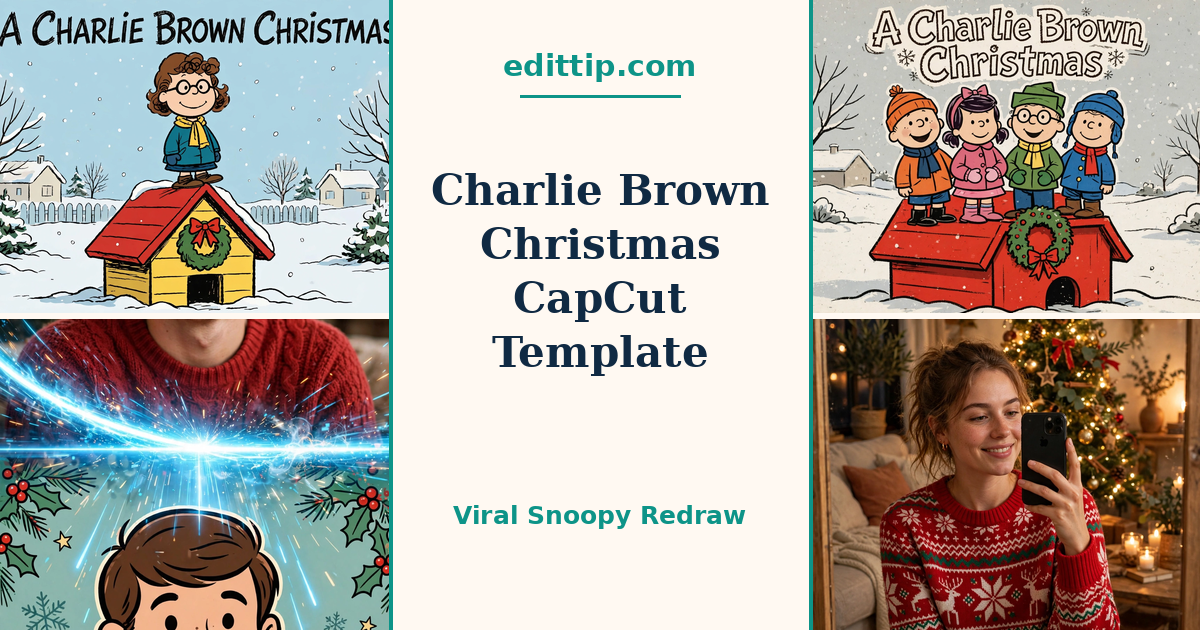
One photo, twelve seconds, and a cartoon doghouse. That is the whole trick behind the Christmas edit that has taken over TikTok and Instagram Reels this season.
The edit runs on a CapCut template named “A Charlie Brown”, and it has become the breakout Christmas trend of the season. This guide explains what the Charlie Brown Christmas CapCut template does, how to use it, and how to get a result that actually looks like you.
One thing to get straight first: this trend is fan-made. It is not official Peanuts content. The characters in this trend come from the Peanuts comics, and a trend like this is a long way from an official release. If you see a page selling an “official” version, it is not official.
What the Charlie Brown Christmas CapCut Template Does
The Charlie Brown Christmas CapCut template is a ready-made edit. Somebody has already built the scene, the movement and the music, and you drop your own photo into it.
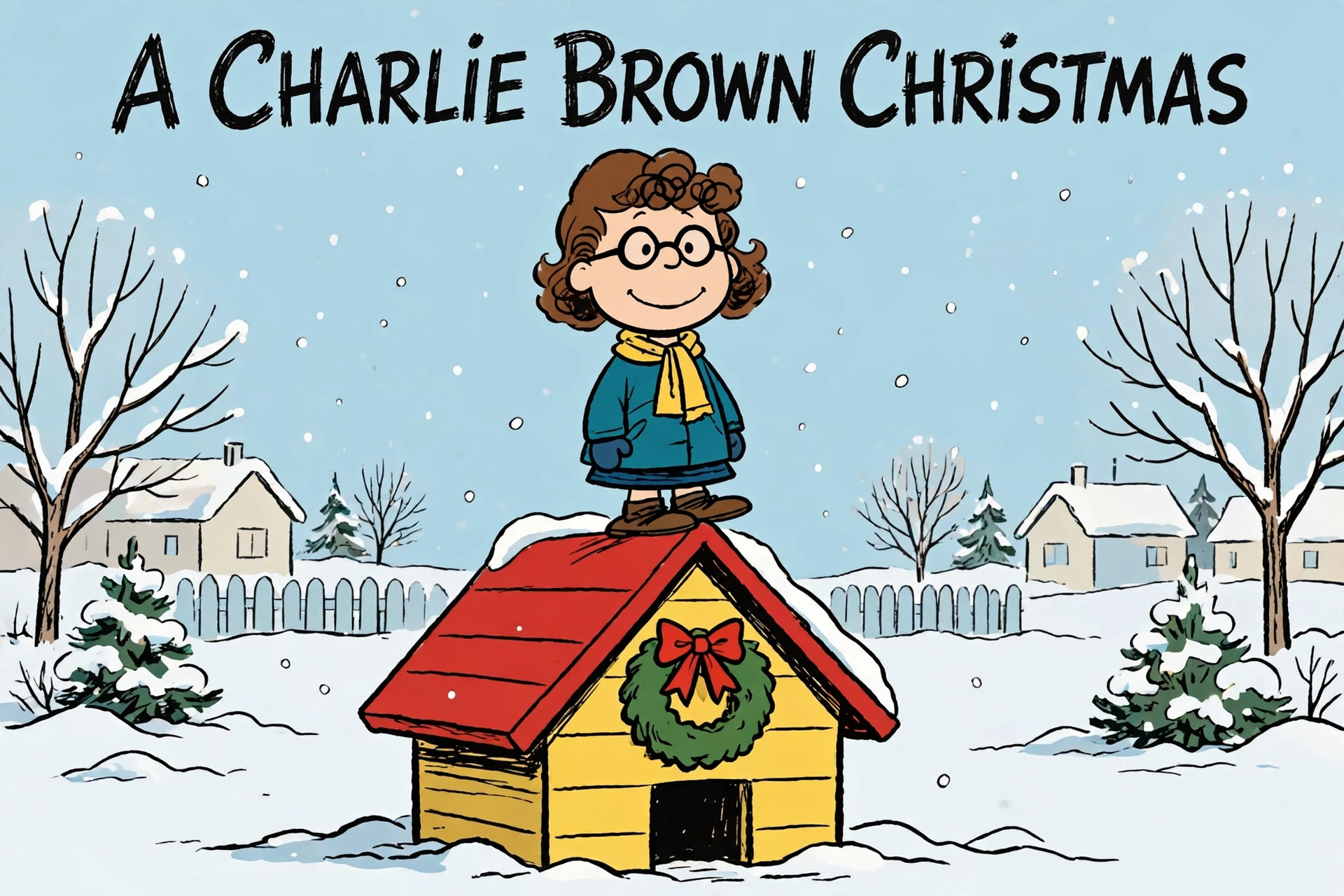
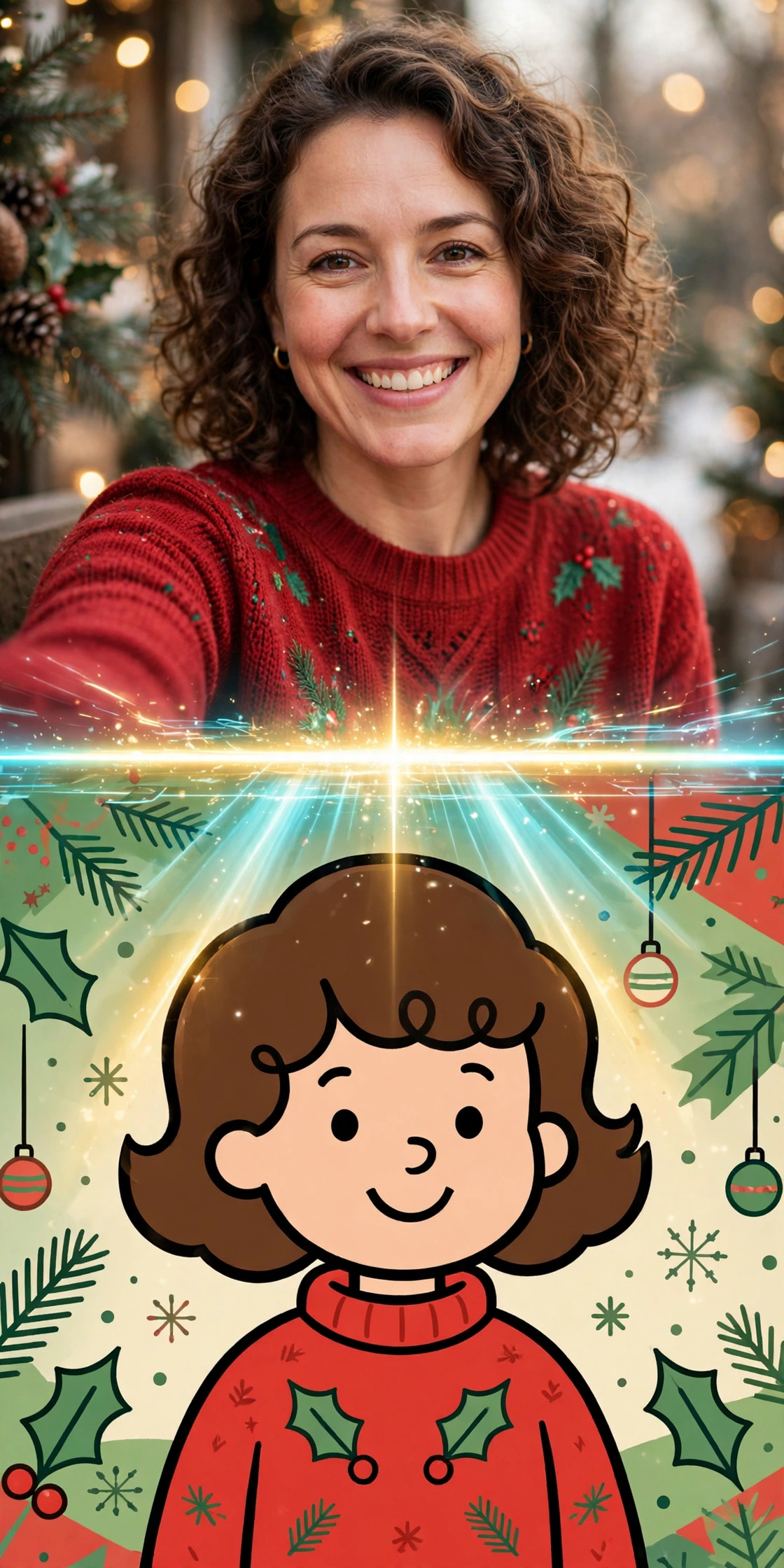
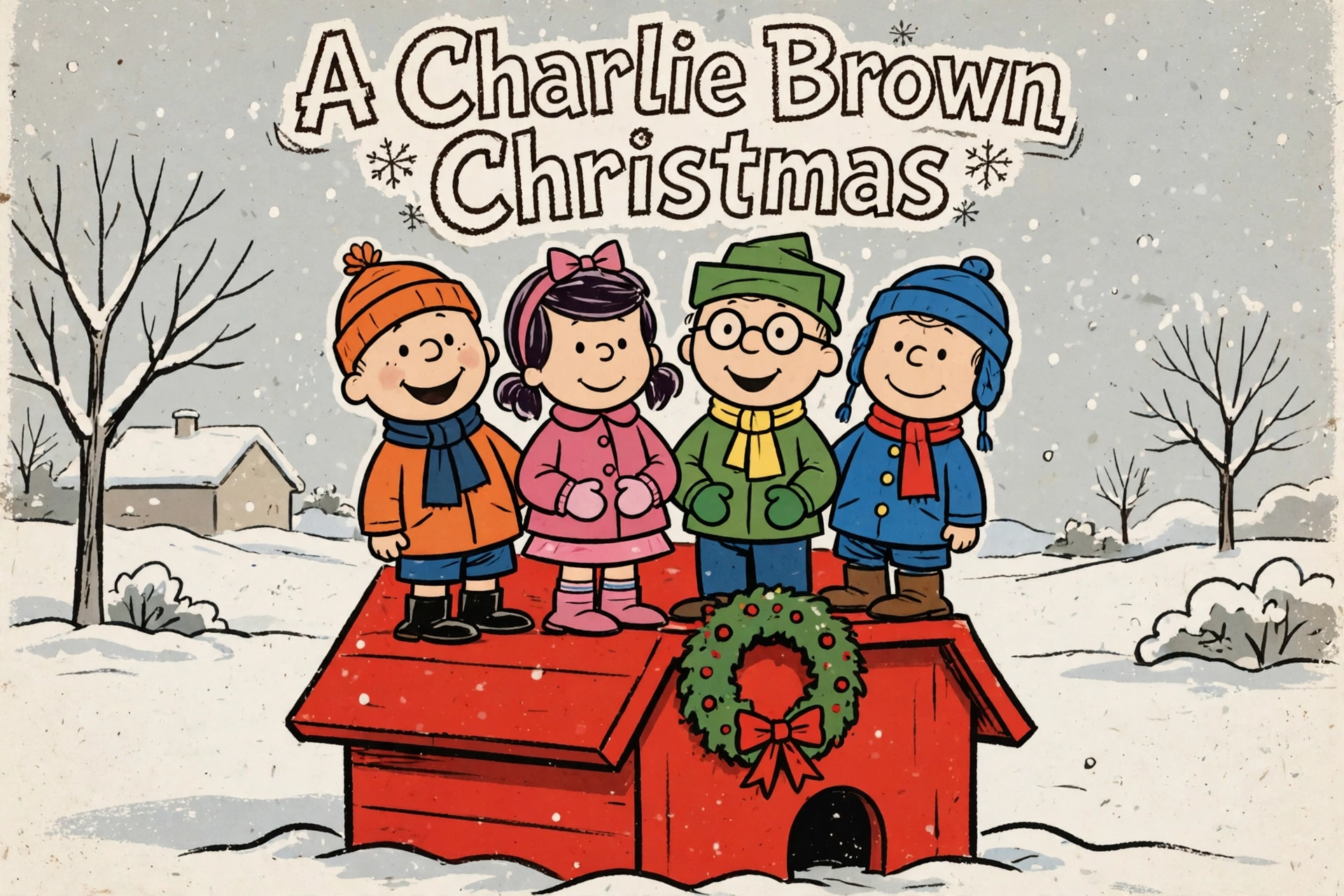
It works in three beats. First, your real photo fills the screen. Then a bright scan line sweeps from the top to the bottom, redrawing you into a flat cartoon in the style of the Peanuts comics. A title card reading “A Charlie Brown Christmas” appears, and then the cartoon version of you stands on Snoopy’s red doghouse, in a snowy scene, as a gentle Christmas tune plays.
The look copies the 1965 animated special A Charlie Brown Christmas, which first aired on CBS on 9 December 1965 and has run every Christmas since. The soft colours, the simple faces and the music come straight from that special, and the cartoon version of you inherits the same hand-drawn look. If you can watch the special while you make yours, you will see the style clearly.
The finished clip runs about 12 seconds. A single photo works, and the Charlie Brown Christmas CapCut template supports group photos of up to four people, with each person drawn as their own cartoon standing on the doghouse. That group version is a large part of the trend, but most people still post the solo version.
Why This Trend Took Off
The trend started quietly. The first post was a mirror selfie by @jason_l_smith on 22–23 October 2026. A few days later, on 26 October, @nanceesjourney posted with the caption “Sixty days till Christmas”, and the format began to spread. On 29 October it exploded: a tutorial by @sm5hbjno8 passed 270,000 views, and other early posts passed 100,000 views each.
By 1 November the Charlie Brown Christmas CapCut template had logged roughly 23,700 uses and was still gaining about 1,700 a day, while the #charliebrownchristmas hashtag sat near 253 million views. Those figures were reported in early November and will have moved since — the point is the scale, not the exact count. A simple idea, one photo, and a countdown to Christmas turned out to be exactly what people wanted to post.
It is worth knowing what this is not. It is not the Charlie Brown dance trend from December 2025, and it is not an official Peanuts filter — there is no such thing. If you see a page selling an “official” version, it is not official.
How to Use the Charlie Brown Christmas CapCut Template
The whole process takes a few minutes once your photo is ready.
- Update CapCut first. Open your app store and check that CapCut is on its latest version. The Charlie Brown Christmas CapCut template sometimes fails to load on older versions, and updating first avoids that problem.
- Open the Templates tab. In the CapCut app, tap Templates at the bottom of the screen. This is where CapCut keeps its template library. You can also browse the library on CapCut’s website (https://www.capcut.com/templates).
- Search for the Charlie Brown Christmas CapCut template by name. Type “A Charlie Brown” into the search bar. If that exact name brings up nothing, try “Charlie Brown Christmas” or “Snoopy Christmas” and look through the results. Template availability can vary by region and by account, so if it does not appear for you, try again later or search the shorter phrase.
- Preview it before you commit. Tap the Charlie Brown Christmas CapCut template to watch its preview. This shows you the scan-line redraw, the doghouse scene and the music, so you know what your version will look like.
- Tap “Use template” and add your photo. CapCut will show you the photo slots. Add your photo, then tap Preview to watch your version.
- Export and share. When you are happy with the preview, export the video and save it to your phone. From there you can post it as a TikTok, an Instagram Reel, or a YouTube Short. Keep the AI-generated label on when you post, and add the hashtags #charliebrownchristmas and #snoopyfilter.
Choosing a Photo That Redraws Well
The Charlie Brown Christmas CapCut template does the drawing, but the photo decides whether the cartoon looks like you. A few choices make a real difference.
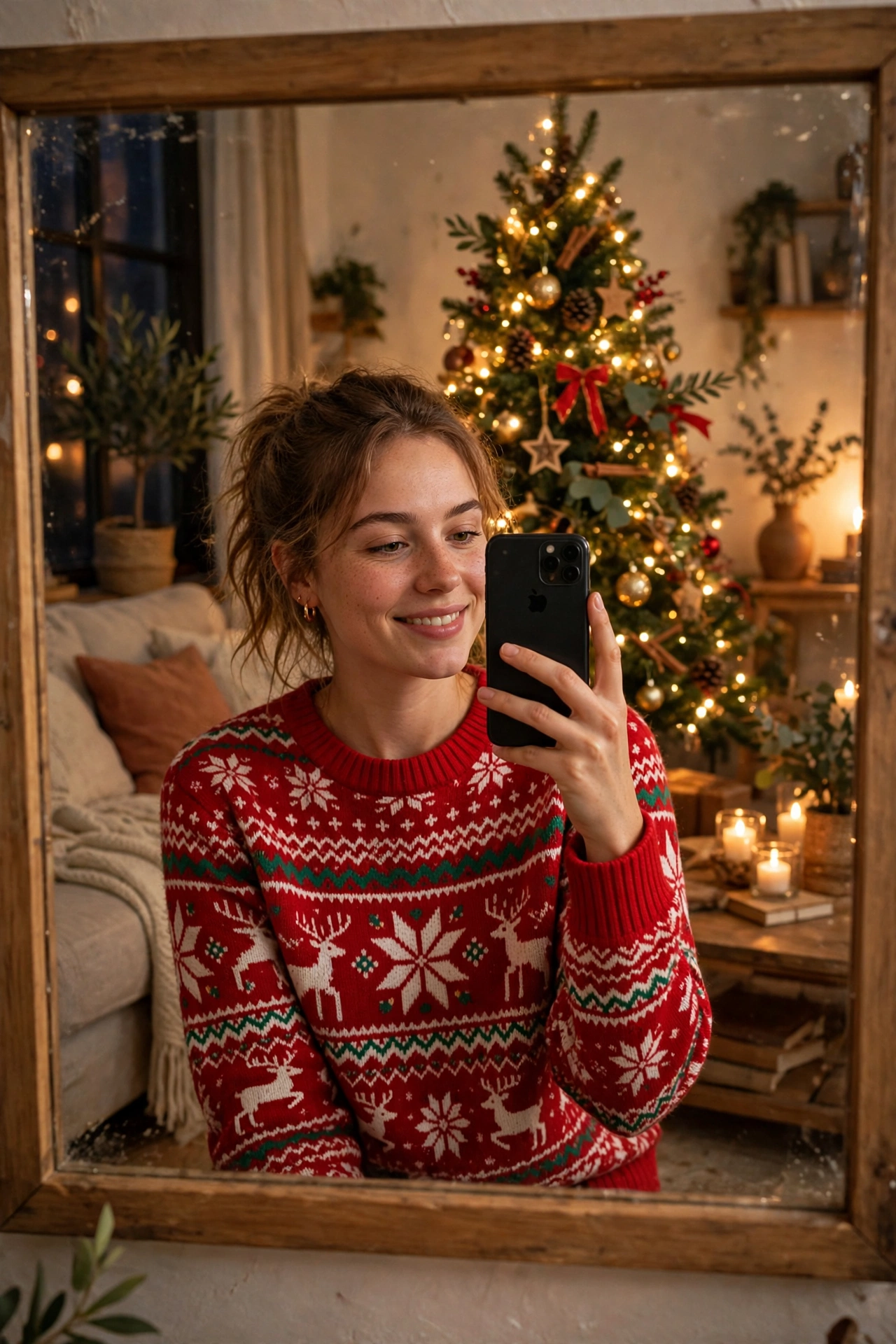
Pick a clear, front-facing photo, waist-up or full body, with your face to the camera and even light on it. The redraw keeps your hair, glasses and outfit from the photo, so they need to be visible: hair and glasses in frame, clothes you actually want to see in cartoon form. Avoid sunglasses, masks, or costume photos, which confuse the redraw.
A plain or uncluttered background helps, because the Charlie Brown Christmas CapCut template replaces the background with its own snowy scene anyway. A group photo works too — up to four people — but everyone should be standing close together and facing the camera, or the redraw can crop someone out.
If you do not have a Christmas photo of yourself yet, you can make one first. These 25+ AI Christmas photo prompts are written for Gemini and ChatGPT, and a finished image from one of them drops straight into the Charlie Brown Christmas CapCut template as the starting photo.
How to Caption It Like the Trend
Most of the trend’s biggest posts use almost no caption at all — just the countdown. “Sixty days till Christmas”. “Forty days till Christmas”. And so on, with the number counting down as Christmas approaches. That countdown is the whole point of the trend; it is what the doghouse scene and the music are building towards.
Add the two hashtags the trend’s tutorials use, #charliebrownchristmas and #snoopyfilter, and keep the AI-generated label on when you post. That label matters here — this is an AI redraw of a real photo, and the apps require you to say so. The first version of this post was published in November 2026, so if you are reading it later in the season, the countdown number has moved on.
Tips for a Better Result
Watch your preview with the sound on, from start to finish, before you export. It is the only way to catch a wrong photo or a redraw that misses the likeness.
Try two or three different photos before you settle. The same Charlie Brown Christmas CapCut template can redraw one photo beautifully and miss the likeness on another. A front-facing photo in even light works best, and a side angle or a shadow across the face is the most common reason the likeness fails.
Do not add extra effects on top of the Charlie Brown Christmas CapCut template. The scan line, the doghouse and the title are already doing the work, and adding a filter or a sticker set on top usually makes the video look busy. If a photo redraws poorly, try another photo instead.
If the reel is a gift or a surprise, export a copy and keep it saved before you post anything. It is easier to fix a finished video than to rebuild it later.
What the Template Cannot Do
The Charlie Brown Christmas CapCut template does not take your photo for you, and it does not improve a blurry one. The quality of the cartoon depends entirely on the quality of the photo you put in, and if the photo is dim or soft, the redraw will not take and the cartoon may miss the likeness.
It also cannot make the trend official. No matter how polished your Charlie Brown Christmas CapCut template video looks, it is fan work, and you should be clear about that when you share it.
Finally, remember that the Charlie Brown Christmas CapCut template can come and go — CapCut sometimes shows different templates to different users, and the one you saw yesterday may not be there tomorrow — so export and save your finished video while it is still available.
Frequently Asked Questions
Is the Charlie Brown Christmas CapCut template official Peanuts content?
No. The template and the trend are fan-made. The characters and the 1965 special A Charlie Brown Christmas are Peanuts content, but the template itself is not official. That is a key part of the story, and it is also why the app requires the AI-generated label when you post.
Is the template free?
Yes, the Charlie Brown Christmas CapCut template is free inside the CapCut app. Some effects or export options in CapCut are part of CapCut Pro, so if the app asks you to upgrade for a particular feature, that is a Pro feature, not the template itself.
How many people can be in one video?
The template supports group photos of up to four people, giving each person their own cartoon. A single photo works just as well and is the most common version of the trend.
Why can’t I find the template in my country?
Template availability can vary by region and by account, and CapCut sometimes shows different templates to different users. Try searching “A Charlie Brown” first, then the shorter phrases “Charlie Brown Christmas” or “Snoopy Christmas”, check that your app is updated, and try again later. The Charlie Brown Christmas CapCut template is also listed in CapCut’s template library on its website.
Can I post the video on Instagram and TikTok?
Yes. Export the video from CapCut first, then upload the saved file to TikTok or Instagram as a Reel. The clip is vertical, which fits both. Keep the AI-generated label on and add #charliebrownchristmas and #snoopyfilter.
Can I use a photo of someone else?
Only use photos of people who have agreed to be in the video. Do not upload photos of children, celebrities, or anyone who has not said yes.
Final Thoughts
The Charlie Brown Christmas CapCut template works because it asks almost nothing of you — one photo, one tap — and gives back something that feels personal. The cartoon is still recognisably you, standing on a doghouse you probably watched on television as a child. Pick a good photo, keep the fan-made label honest, caption it with the countdown, and post it while Christmas is still close enough for people to care.
1 thought on “Charlie Brown Christmas CapCut Template: How to Make the Viral Snoopy Redraw”