Best Video Editor App in Mobile (2026): Top Apps for iPhone & Android
Editing videos on a phone is now easy and powerful. You don’t need a computer or expensive software to create great content. With the right mobile video editor app, you can trim clips, add music, text, and captions, and export high-quality videos for TikTok, Instagram Reels, and YouTube.
In this beginner-friendly guide, you’ll discover the best mobile video editor apps for iPhone and Android (free and paid), learn how to choose the right one for your goal—social videos, YouTube, or business—and follow simple step-by-step editing tips. Since mobile editing is fast and convenient, you can record, edit, and post in minutes. By the end, you’ll know which app to use and how to start today.
Quick Answer: Top Picks for the Best Mobile Video Editor Apps
If you want a fast recommendation, here are the best video editor apps for mobile. These picks are beginner-friendly and cover different goals like TikTok, YouTube, and business videos. The “best” app depends on what you want to create, so choose based on your goal.
- Best overall: CapCut — Great for TikTok, Reels, and Shorts with easy templates, auto captions, and smooth transitions.
- Best simple: InShot — A clean and easy editor for trimming, resizing, adding text, and making quick social videos.
- Best free for iPhone: iMovie — A solid free option for iPhone users with a simple timeline, basic effects, and clean exports.
- Best for YouTube: PowerDirector — Strong timeline editing, good export settings, and useful tools for longer videos and tutorials.
- Best pro editor: LumaFusion — Advanced timeline controls and pro-level features for creators who want desktop-style editing on mobile.
- Best for business templates: Canva / Adobe Express — Perfect for marketing videos with ready-made designs, clean text, and brand-friendly layouts.
- Best clean timeline editor: VN Video Editor — A simple timeline-based editor with good control, great for creators who want clean edits without too many templates.
If you’re a beginner and want the easiest start, choose CapCut or InShot. If you want more control for YouTube, go with PowerDirector. If you’re building a brand, Canva or Adobe Express is a smart choice.
Top 10 Best Video Editor Apps in Mobile (iPhone & Android)
Below are the top mobile video editing apps for beginners. Each one is good for a different goal—like TikTok videos, YouTube editing, business promos, or advanced timeline work. Read the “best for” line first, then pick the app that matches your needs.
| App | Best For | Top Features | Pros | Cons | Beginner Tip |
|---|---|---|---|---|---|
| CapCut | TikTok, Reels, Shorts | Templates, Auto captions, Music sync, Effects, Transitions, Speed control | Very easy, fast editing, best for social content | Some features need sign-in/paid, templates can look similar | Trim + captions se start karein, heavy effects baad me |
| InShot | Quick edits + social posting | Trim/Split, Text, Stickers, Music, Aspect ratio, Background blur | Super easy, quick export, basic edits perfect | Some features paid, watermark rules vary | Resize pehle set karein taake baad me crop na ho |
| iMovie (iPhone) | iPhone beginners, simple YouTube | Timeline, Themes, Titles, Transitions, Built-in music | Free, stable, beginner-friendly | Effects limited, social templates kam | “Split” use karke mistakes remove karein |
| PowerDirector | YouTube, tutorials, long videos | Multi-track timeline, Speed, Effects, Titles, Export settings | Strong features, good exports | Paid features, older phones pe heavy | Pehle simple edit karein, 1080p me export karein |
| KineMaster | Layers + creative editing | Layers, Chroma key, Keyframes, Audio mix, Effects | Advanced control, intros/effects great | Free plan watermark, learning curve | One tool at a time seekhein (trim + text layers) |
| LumaFusion | Pro mobile editing | Pro timeline, Multi-track, Audio controls, Color correction | Pro workflow, clean exports | Mostly paid, harder for beginners | Basics kisi simple app me seekh kar is pe shift karein |
| VN Video Editor | Clean timeline editing | Timeline, Transitions, Text, Speed, Music | Clean UI, good control, consistent style | Templates kam, advanced users ko basic lag sakta | Same font + colors ka preset style banayein |
| YouCut (Android) | Android beginners, light editing | Trim/Split, Filters, Music, Speed, Aspect ratio | Easy, lightweight, basic edits good | Advanced tools limited | 1080p export for best quality + manageable size |
| Adobe Express | Business/marketing videos | Templates, Brand kit, Text animation, Resizing, Layouts | Professional look, fast, brand-friendly | Deep timeline editing nahi | Brand colors + one clean font use karein |
| Canva | Templates + design + promos | Templates, Text design, Brand kit, Stock elements, Resizing | Very easy, best templates, strong design | Advanced cutting limited | 1–2 fonts use karein for clean look |
1) CapCut
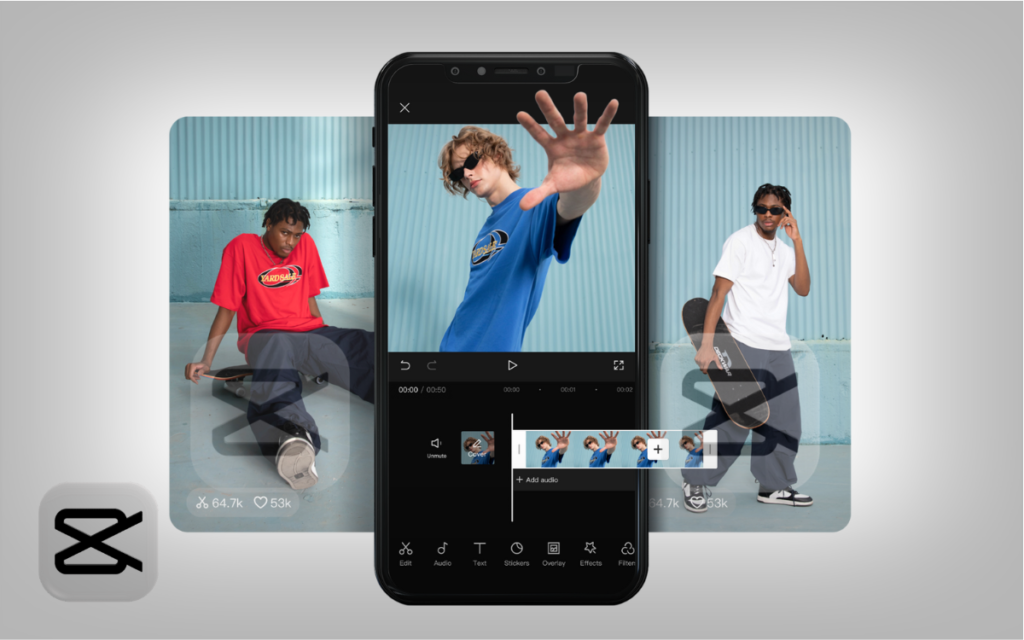
CapCut is one of the most popular mobile video editors right now, especially for short videos. It’s best for TikTok, Instagram Reels, and YouTube Shorts because it offers templates, auto captions, and trendy effects that are easy to use. You can trim clips, add smooth transitions, apply filters, and sync your edits to music quickly.
Top features: templates, auto captions, music syncing, effects, transitions, speed control.
Pros: very beginner-friendly, fast editing, great for social content.
Cons: some features may require sign-in or a paid plan, and templates can make videos feel “similar” if overused.
Beginner tip: Start with simple edits (trim + captions) before using heavy effects.
You can find CapCut templates here: CapCut Templates.
Trending Baby Dance AI Video: Step-by-Step Guide for Beginners
2) InShot
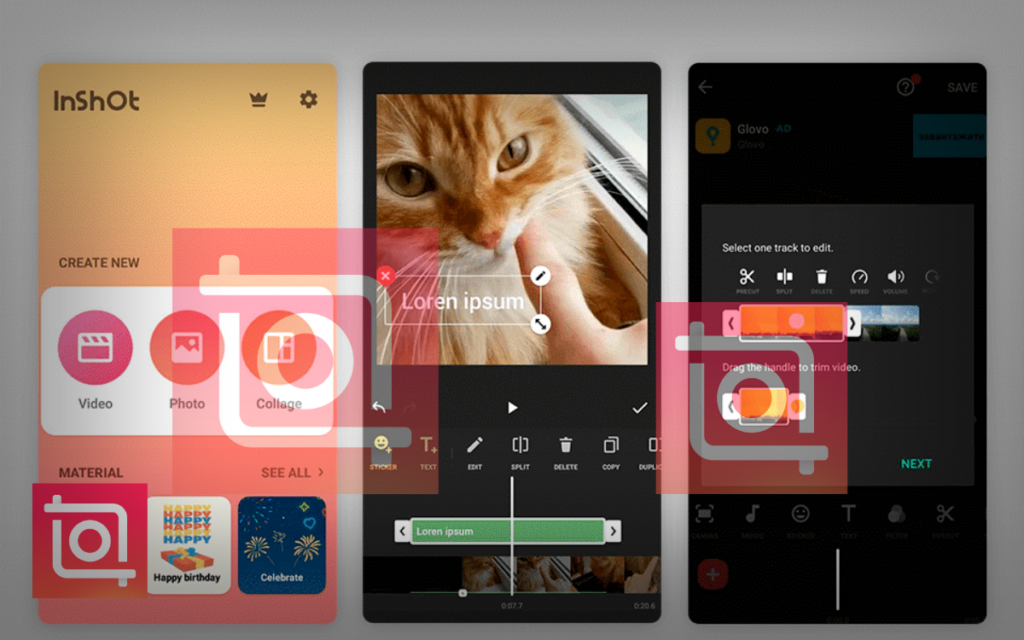
InShot is a simple, clean editor that many beginners love. It’s best for quick edits like trimming, resizing, adding text, and posting to social media. The layout is easy to understand, and the tools feel straightforward. InShot is also great if you want to change your video size quickly (vertical, square, or landscape).
Top features: trim/split, text, stickers, music, aspect ratio tools, background blur.
Pros: easy to learn, quick exports, perfect for basic social videos.
Cons: some features may be locked behind the paid version, and watermark rules can depend on settings or plan.
Beginner tip: Use the resize tool early so you don’t crop important parts later.
3) iMovie (iPhone)
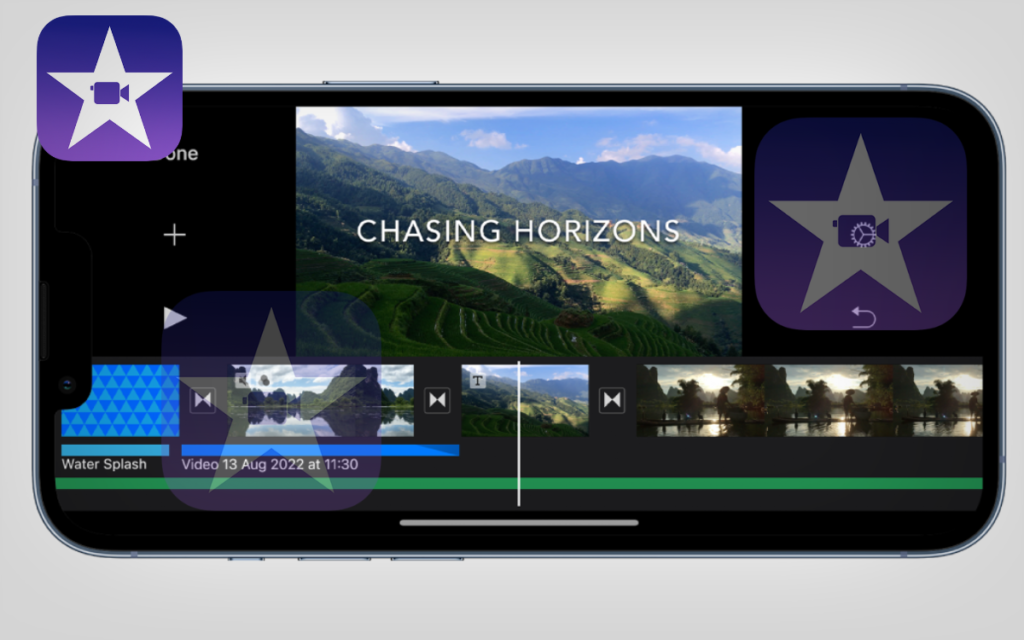
iMovie is a free Apple video editor available on iPhone. It is best for beginners who want a clean timeline and easy editing without downloading extra apps. You can trim clips, add simple transitions, include titles, and use built-in music. iMovie is especially good for simple YouTube videos, family videos, or basic content that needs clean editing.
Top features: simple timeline, themes, titles, transitions, built-in music.
Pros: free on iPhone, stable performance, beginner-friendly.
Cons: fewer effects than other apps, limited options for trendy social templates.
Beginner tip: Use the “split” tool to remove mistakes without re-recording everything.
4) PowerDirector
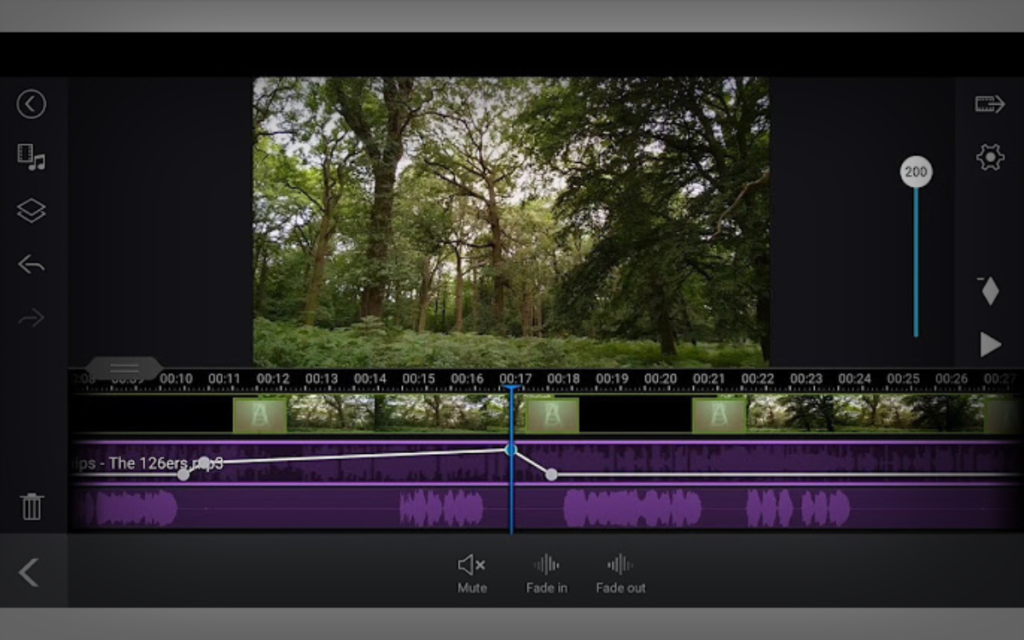
PowerDirector is a strong choice for creators who want more control than basic apps. It’s best for YouTube videos, tutorials, and longer edits because it offers a timeline experience with useful editing tools. You can add text, transitions, effects, and adjust color and speed. It also gives good export options, which is helpful if you care about video quality.
Top features: multi-track timeline, speed tools, effects, titles, export settings.
Pros: good for YouTube workflow, strong features, quality exports.
Cons: some features require a paid plan, and it may feel heavy on older phones.
Beginner tip: Keep your first edit simple: trim clips, add titles, then export in 1080p.
5) KineMaster
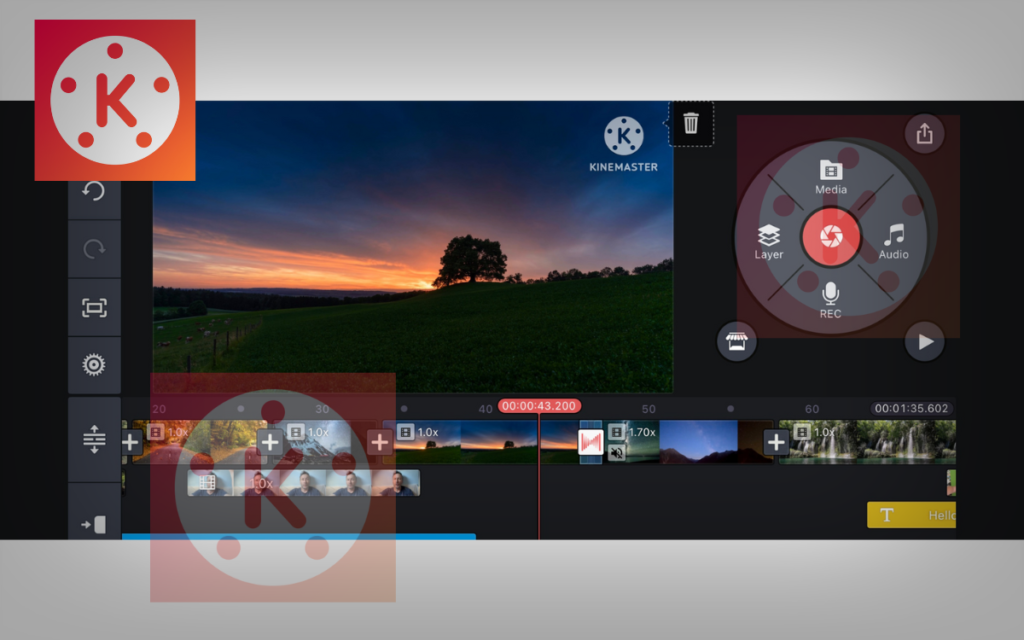
KineMaster is a powerful mobile editor known for layers and effects. It’s best for creators who want more creative control—like adding overlays, text animations, and green screen (chroma key). You can work with multiple layers of video, images, and text. It’s a good step up when you are ready to learn more advanced editing.
Top features: layers, chroma key, keyframe animation, audio mixing, effects.
Pros: advanced tools on mobile, great for creative edits and intros.
Cons: free plan often includes watermark, and beginners may need time to learn it.
Beginner tip: Learn one tool at a time (start with trim + text layers).
6) LumaFusion
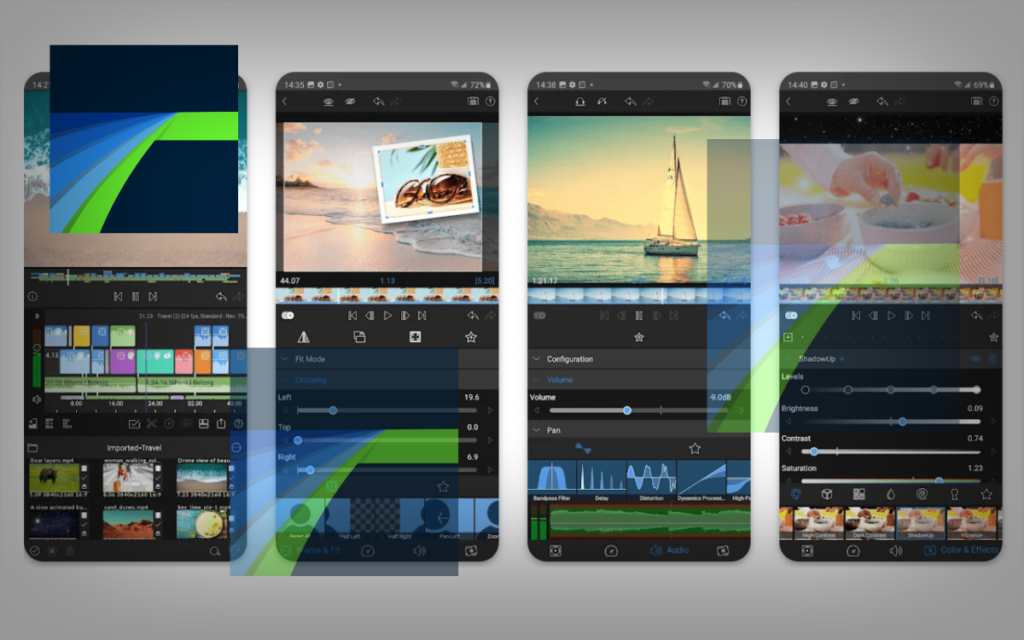
LumaFusion is one of the best professional video editors on mobile. It’s best for serious creators who want a “desktop-style” timeline on a phone or tablet. You can do advanced multi-track editing, better audio control, and more detailed trimming. If you’re planning to grow a YouTube channel or work professionally, this app can be worth it.
Top features: pro timeline, multi-track editing, audio controls, color correction.
Pros: professional workflow, strong editing control, clean exports.
Cons: usually paid, and the learning curve is higher than beginner apps.
Beginner tip: Use it for longer projects after you learn basic editing in a simpler app.
7) VN Video Editor
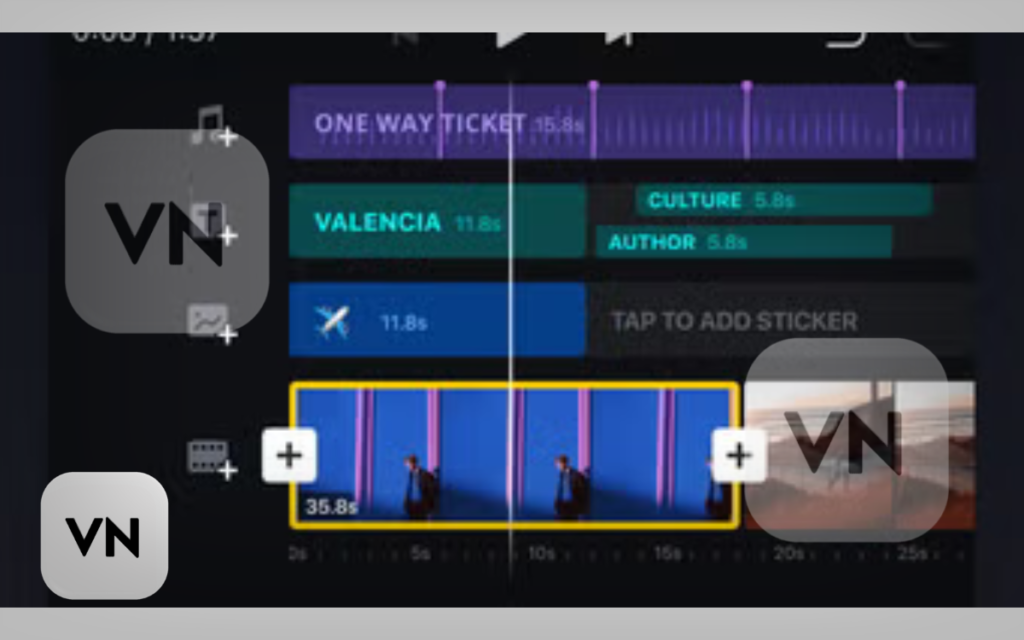
VN Video Editor is a clean timeline editor that works well for creators who want control without too many templates. It’s best for simple to mid-level editing and feels more “editor-like” than design-style apps. VN supports trimming, transitions, text, and music, and many users like its simple timeline layout.
Top features: timeline editing, transitions, text tools, speed control, music.
Pros: clean interface, good control, great for consistent editing style.
Cons: fewer trendy templates compared to CapCut, and some tools may feel basic for advanced users.
Beginner tip: Create a simple preset style (same font + same colors) for a consistent look.
You can find VN templates here: CapCut Templates.
8) YouCut (Android)
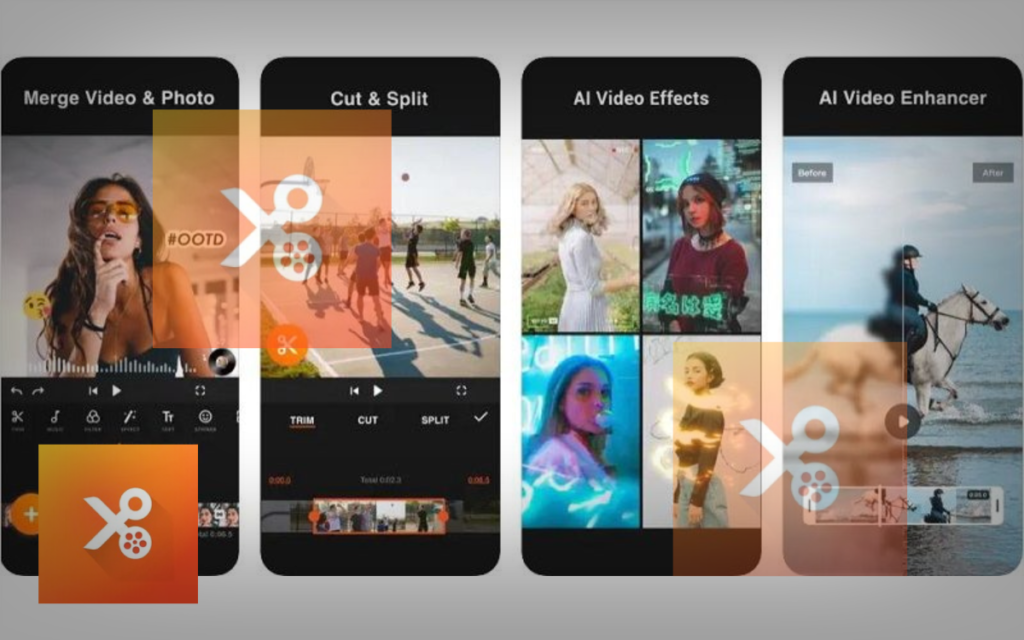
YouCut is a beginner-friendly Android video editor that focuses on simple editing. It’s best for users who want basic trimming, music, effects, and quick exports without a complicated interface. If you have an older Android phone, YouCut can feel lighter than some advanced apps.
Top features: trim/split, filters, music, speed control, aspect ratio support.
Pros: easy to use, good for beginners, works well for basic edits.
Cons: not as powerful for advanced timeline work, effects are more limited than pro apps.
Beginner tip: Export in 1080p for a good balance of quality and file size.
9) Adobe Express
Adobe Express is a great option for business and marketing-style videos. It’s best for people who want clean templates, text animations, and brand-friendly visuals. You can create quick promos, product videos, and social posts with professional design. This is more of a “content creation” tool than a deep video editor, so it’s perfect for simple, polished results.
Top features: templates, brand kit, text animation, resizing, quick layouts.
Pros: professional look, fast creation, ideal for brand content.
Cons: not a heavy timeline editor, some features require subscription.
Beginner tip: Use brand colors and one clean font to look more professional.
10) Canva
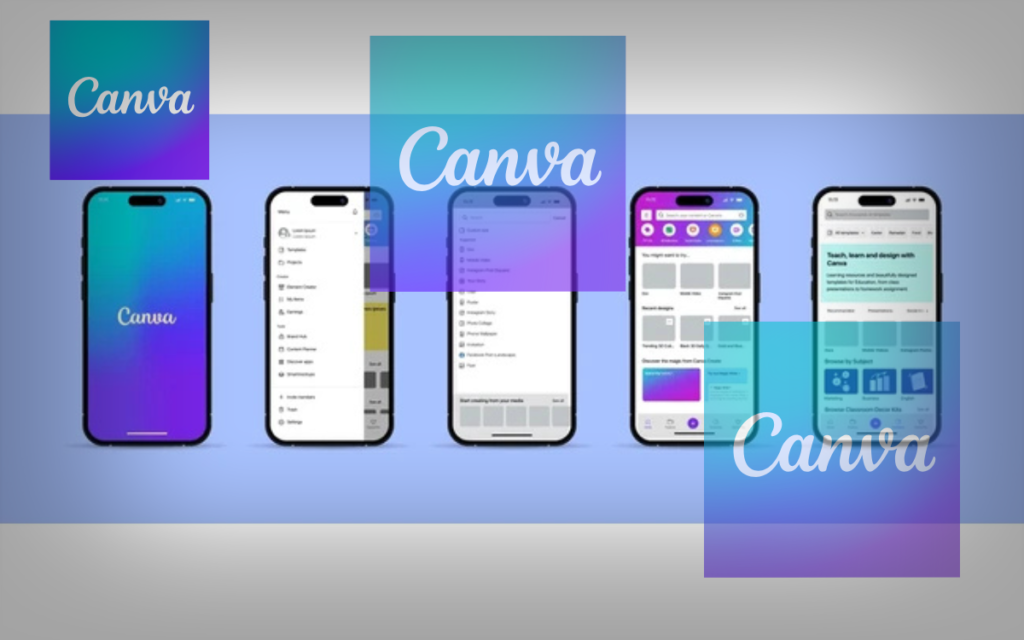
Canva is popular because it mixes design and video editing in one place. It’s best for business content, social media promos, and simple videos that need strong text and graphics. Canva offers many templates, and you can easily add titles, icons, and music. It’s perfect if you want a clean and modern look without complex editing.
Top features: templates, text design, brand kit, stock elements, resizing.
Pros: super easy, great templates, strong design tools.
Cons: not ideal for advanced video cutting or deep timeline control.
Beginner tip: Don’t use too many fonts—stick to 1–2 fonts for a clean style.
How to Choose the Best Mobile Video Editor (Buyer Guide)
1) iPhone vs Android: Check the app supports your device and runs smoothly. Read recent app store reviews and confirm your iOS/Android version. iPhone users can start with iMovie; Android users often like YouCut or VN.
2) Easy UI: Pick an app with clear buttons (Trim, Split, Text, Music), a simple timeline, and easy drag-and-drop tools. If it feels confusing in 10–15 minutes, switch to a simpler app like CapCut or InShot.
3) Must-have features: Most beginners only need trim, split, captions/text, music/voiceover, and transitions. Choose an app that covers these basics without extra complicated tools.
4) Export quality: Aim for 1080p and 30 FPS for most videos. Use 60 FPS for fast action. 4K is optional but creates bigger files.
5) Watermark rules: Test export before editing a long video. Some apps require ads or paid plans to remove watermarks.
6) Video sizes: Look for 9:16 (TikTok/Reels/Shorts), 16:9 (YouTube), and 1:1 (Instagram).
7) Performance: Older phones need lighter apps and fewer effects.
Free vs Paid: What You Really Need
Many beginners start with a free video editor app, and that is completely fine. Free apps can trim clips, add text, include music, and export good-quality videos. But most free versions come with limits. The key is knowing what you actually need now—and what you can upgrade later.
Trending Ink Flash CapCut Template – Viral Instagram Reels Guide
What Free Apps Usually Limit
Free mobile video editors often restrict a few common things:
- Watermark: Some apps add a logo to your exported video unless you upgrade.
- Premium effects and templates: The best transitions, filters, and ready-made templates may be locked.
- Export quality settings: You may get fewer options for 4K, higher FPS, or advanced export controls.
- Stock music and assets: Some music, stickers, fonts, and graphics may require a paid plan.
- Editing tools: Features like advanced color grading, keyframes, green screen, and pro audio tools are often limited.
This doesn’t mean free is bad—it just means free is designed to help you start, then upgrade if you need more.
When Paid Is Worth It
A paid plan is usually worth it when:
- you want no watermark every time,
- you edit videos weekly or daily,
- you need advanced tools (layers, keyframes, better audio),
- you create content for clients or a business,
- you want faster workflow with premium templates and exports.
If your videos are part of your job or brand, paying can save time and make your content look more professional.
Beginner Recommendation: Start Free, Upgrade Later
If you’re new, start with a free app like CapCut, iMovie (iPhone), or VN and learn the basics (trim, split, captions, music, export). After 2–4 weeks, you’ll know what you’re missing. Then upgrade only if you need watermark-free exports, better quality controls, or advanced features. This approach keeps your costs low while you build real editing skills.
Conclusion
Choosing the best mobile video editor is easy when you match the app to your goal. For quick short videos, CapCut is a great choice. For simple editing, InShot works best for beginners. iPhone users can start free with iMovie, YouTube creators may prefer PowerDirector, and LumaFusion is ideal for pro-level editing.
Next, pick one app and practice with a short video. Learn the basics: trim, split, captions, music, and export. After a few weeks, you’ll know if you need a paid plan.
For more help, read our guide on making professional TikTok/Reels videos, contact us for content support, or subscribe for weekly tips.
FAQs
1) What is the best free video editor app on mobile?
If you want a free option, CapCut is one of the best for short videos because it offers strong tools like captions, effects, and easy editing. For iPhone users, iMovie is also a great free editor with a simple timeline. If you prefer a clean timeline style on both phones, VN Video Editor is another solid free choice.
2) What is the best video editor app for iPhone?
For beginners on iPhone, iMovie is the best place to start because it is free, simple, and stable. If you want more trendy editing for Reels and Shorts, CapCut is a strong option too.
3) What is the best video editor app for Android?
For Android beginners, CapCut and InShot are popular because they are easy to learn and work well for social videos. If you want a lighter simple editor, YouCut is also a good choice.
4) Which mobile video editor app has no watermark?
Watermark rules depend on the app and plan. iMovie is often a safe option for iPhone users because exports are usually clean. If you want a professional option with clean exports, LumaFusion (paid) is a strong choice. Always test export once before editing a long video.
5) What is the best app for TikTok and Instagram Reels?
CapCut is one of the best apps for TikTok and Reels because it supports vertical video (9:16), has templates, and offers auto captions and trendy transitions. InShot is also good if you prefer simple editing without heavy templates.
6) What is the best mobile editor for YouTube videos?
For YouTube creators, PowerDirector is a great choice because it offers a strong timeline, better export controls, and useful tools for longer edits. If you want a more professional workflow on mobile, LumaFusion is a top option.
7) Can I export 4K videos from a mobile editor?
Yes, many mobile editors support 4K export, but it depends on your phone and the app. Apps like PowerDirector and LumaFusion often provide better export controls. Keep in mind that 4K files are larger and may take longer to export.
8) Which app is easiest for complete beginners?
If you want the simplest learning experience, InShot is one of the easiest editors for beginners. iPhone users can also start with iMovie. For social video beginners who want fast results, CapCut is also easy and beginner-friendly.
9) What export settings should beginners use?
For most beginners, export in 1080p for clear quality. Use 30 FPS for normal videos. If your video has fast movement (sports, action), you can use 60 FPS for smoother motion.
10) Should I start with free or paid editing apps?
Start free if you are learning. Once you understand the basics and need watermark-free exports or advanced tools, then consider upgrading. This saves money and helps you choose the right plan later.